

Introduction :
Continuous Integration (CI) is a development practice that requires developers to integrate code into a shared repository several times a day. Each check-in is then verified by an automated build, allowing teams to detect problems early. By integrating regularly, you can detect errors quickly, and locate them more easily.
In this tutorial you will learn how to setup Jenkins using Docker and then deploy it on AWS S3 ,thus completing the entire CI/CD process.
Step 1 : Create a Blank React Project using :
npx create-react-app cicd_tutorial
cd  cicd_tutorial
npm start
Step 2 : Install Docker
Prerequisites:
Minimum hardware requirements:
256 MB of RAM
1 GB of drive space (although 10 GB is a recommended minimum if running Jenkins as a Docker container)
Software requirements:
Java: see the Java Requirements page
Web browser: see the Web Browser Compatibility page
Go to Docker store and download respective docker image depending on your OS.

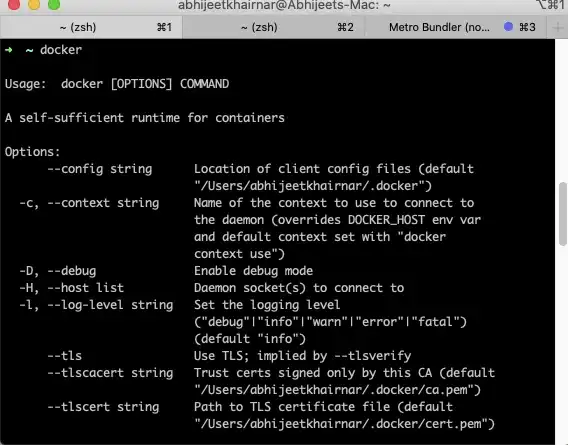
Step 3 : Download Jenkins Image For Docker
The recommended Docker image to use is the jenkinsci/blueocean image (from the Docker Hub repository). This image contains the current Long-Term Support (LTS) release of Jenkins (which is production-ready) bundled with all Blue Ocean plugins and features. This means that you do not need to install the Blue Ocean plugins separately.
Run the following command in your terminal
docker pull jenkinsci/blueocean
docker run -p 8080:8080 jenkinsci/blueocean
Note the admin password dumped on log
open a browser on http://localhost:8080
run the initial setup wizard. Choose “recommended plugins”
browse to http://localhost:8080/blue
This creates Jenkins BlueOcean Image in your docker.
Step 4 : Run Jenkins in Docker
- Open up a terminal window.
- Create a bridge network in Docker using the following
docker network createcommand:
docker network create jenkins
Create the following volumes to share the Docker client TLS certificates needed to connect to the Docker daemon and persist the Jenkins data using the following docker volume create commands:
docker volume create jenkins-docker-certs
docker volume create jenkins-data
In order to execute Docker commands inside Jenkins nodes, download and run the docker:dind Docker image using the following docker container run command:
docker container run --name jenkins-docker --rm --detach --privileged --network jenkins --network-alias docker --env DOCKER_TLS_CERTDIR=/certs --volume jenkins-docker-certs:/certs/client --volume jenkins-data:/var/jenkins_home --volume "$HOME":/home --publish 3000:3000 docker:dind
Run the jenkinsci/blueocean image as a container in Docker using the following docker container run command (bearing in mind that this command automatically downloads the image if this hasn’t been done):
docker container run --name jenkins-tutorial --rm --detach --network jenkins --env DOCKER_HOST=tcp://docker:2376 --env DOCKER_CERT_PATH=/certs/client --env DOCKER_TLS_VERIFY=1 --volume jenkins-data:/var/jenkins_home --volume jenkins-docker-certs:/certs/client:ro --volume "$HOME":/home --publish 8080:8080 jenkinsci/blueocean
Once you run this command open your browse and browse to http://localhost:8080.
Step 5 : Create your Pipeline project in Jenkins
- Go back to Jenkins, log in again if necessary and click create new jobs under Welcome to Jenkins!
Note: If you don’t see this, click New Item at the top left. - In the Enter an item name field, specify the name for your new Pipeline project (e.g.
CICD Jenkins Project). - Scroll down and click Pipeline, then click OK at the end of the page.
- Give any description of your choice.
- Click the Pipeline tab at the top of the page to scroll down to the Pipeline section.
- From the Definition field, choose the Pipeline script from SCM option. This option instructs Jenkins to obtain your Pipeline from Source Control Management (SCM), which will be your locally cloned Git repository.
- From the SCM field, choose Git.
- In the Repository URL field, specify the directory path of your locally React Project Repo, which is from your user account/home directory on your host machine, mapped to the
/homedirectory of the Jenkins container – i.e. /home/Documents/GitHub/YOUR_REACT_PROJECT_NAME - Click Save to save your new Pipeline project. You’re now ready to begin creating your
Jenkinsfile, which you’ll be checking into your locally cloned Git repository.
Step 6 :Create your initial Pipeline as a Jenkinsfile
First, create an initial Pipeline to download a Node Docker image and run it as a Docker container (which will build your simple Node.js and React application). Also add a “Build” stage to the Pipeline that begins orchestrating this whole process.
- Open your CICD React Project and create a file named
Jenkinsfileat the root - Paste this code in the Jenkins pipeline.
pipeline {
    agent {
        docker {
            image 'node:6-alpine'
            args '-p 3000:3000'
        }
    }
    stages {
        stage('Build') {
            steps {
                sh 'npm install'
            }
        }
    }
- Save your edited
Jenkinsfileand commit it to your repository - Go back to Jenkins again, log in again if necessary and click Open Blue Ocean on the left to access Jenkins’s Blue Ocean interface.
- In the This job has not been run message box, click Run, then quickly click the OPEN link which appears briefly at the lower-right to see Jenkins building your Pipeline project. If you weren’t able to click the OPEN link, click the row on the main Blue Ocean interface to access this feature.
- Note: You may need to wait several minutes for this first run to complete. After making a clone of your local
CICD tutorialGit repository itself, Jenkins: - Initially it queues the project to be run on the agent.
- Downloads the Node Docker image and runs it in a container on Docker.
- Runs the
Buildstage (defined in theJenkinsfile) on the Node container. During this time,npmdownloads many dependencies necessary to run your Node.js and React application, which will ultimately be stored in thenode_modulesworkspace directory (within the Jenkins home directory). - Once its complete the Blue Ocean interface turns green if Jenkins built your Node.js and React application successfully.
Similarly, you can add test stage as well . Once that is added your Jenkins file will look somewhat like this :
pipeline {
    agent {
        docker {
            image 'node:6-alpine'
            args '-p 3000:3000'
        }
    }
    environment {
        CI = 'true'
    }
    stages {
        stage('Build') {
            steps {
                sh 'npm install'
            }
        }
        stage('Test') {
            steps {
                sh 'npm test'
            }
        }
    }
}
In order to set up your S3 bucket in your Jenkins file add a Production stage as per the below code –
 stage('Production') {
   steps {
    withAWS(region:'YOUR_BUCKET_REGION',credentials:'CREDENTIALS_FROM_JENKINS_SETUP') {
    s3Delete(bucket: 'YOUR_BUCKET_NAME', path:'**/*')
    s3Upload(bucket: 'YOUR_BUCKET_NAME', workingDir:'build', includePathPattern:'**/*');
   }
Final Jenkins File
We will setup the credentials in the Jenkins in the next step. Now your Jenkins file should look something like this :
pipeline {
  agent {
    docker {
     image 'node:6-alpine'
     args '-p 3000:3000'
    }
  }
  environment {
    CI = 'true'
    HOME = '.'
    npm_config_cache = 'npm-cache'
  }
  stages {
    stage('Install Packages') {
      steps {
        sh 'npm install'
      }
    }
    stage('Test and Build') {
      parallel {
        stage('Run Tests') {
          steps {
            sh 'npm run test'
          }
        }
        stage('Create Build Artifacts') {
          steps {
            sh 'npm run build'
          }
        }
      }
    }

stage('Production') {
  steps {
    withAWS(region:'YOUR_BUCKET_REGION',credentials:'CREDENTIALS_FROM_JENKINS_SETUP') {
    s3Delete(bucket: 'YOUR_BUCKET_NAME', path:'**/*')
    s3Upload(bucket: 'YOUR_BUCKET_NAME', workingDir:'build', includePathPattern:'**/*');
            }
          }
        }
    }
}
Step 7 : Setting up AWS S3 bucket
- Login to your AWS console
- Click on Create Bucket
- Under Name and region Tab enter your desired bucket name and click Next.
- Click Next on the Configure Options Tab.We dont need to set up anything here as of now.
- Under Set Permissions Tab Uncheck Block all public access and Click Next.
- Finally review all the details and click on Create bucket.
- Once bucket is created , navigate to the bucket –>Permission–>Bucket Policy and paste the following inside –
{
“Version”: “2020-02-19”,
“Statement”: [
{
“Sid”: “PublicReadGetObject”,
“Effect”: “Allow”,
“Principal”: ““, “Action”: “s3:GetObject”, “Resource”: “arn:aws:s3:::YOUR_BUKCET_NAME/“
}
]
}- Go to Properties –> Static Web Hosting
- Select Use this bucket to host a website
- In the index document field mention index.js which is the root file to your React Project.
- Note the endpoint mentioned at the top .This is the url to your React Project once its uploaded.
Step 8 : Upload your React Project to S3
- Open the terminal and go back to the React Project we built at the start of this Tutorial .
- Run npm build .
- Once the build is complete upload all the files in the /build folder to your S3 bucket.
- Once the upload is complete ,copy the endpoint which we had noted above and paste it in the browser.
- Your React app should be be visible at the S3 endpoint.
Step 9 : Create User with IAM
- Go to your AWS console and navigate to IAM –>Access Management –>Users
- Create a User and check Programmatic access under Select AWS access type and Click Next.
- On the
Permissionspage clickAttach existing policies directlyand search forAmazonS3FullAccess. - Once user is created note down your Access Key and Secret Access Key somewhere safe.Note– These keys are only shown once, so don’t forget to store them somewhere safely.
Step 10 : Setup AWS for Jenkins
- Go to your Jenkins Dashboard.Login back if necessary.
- Go to ManageJenkins –> Manage Plugins
- Search for Pipeline: AWS Steps Plugin and install it
- Once installed restart your Jenkins .
- Go back to your dashboard and click on Credentials.
- Select Add Credentials .
- Under kind field in the dropdown select AWS Credentials. If it doesn’t appear in the dropdown then it means that your plugin is not installed properly
- In the ID field mention any ID of your choice .Remember this ID has to be added to your Jenkins file in the credentials field in the above code.
- Enter your AWS Access Key and Secret Access Key which you had noted down before .
- Click Save and open Blueocean from the dashboard.
Now make any change to your react app and commit your file to your local repo.If everything is setup properly your newly committed will be uploaded to S3 which you can browse through the bucket endpoint where your app exists.